-
Listening and speaking, perfected. Open-ear wireless earbuds.
νClip
νClip
- Features
- Standard Edition Info
- AURALINK Edition Info
- FAQ
Open-Ear Ear-Cuff Wireless Earbuds
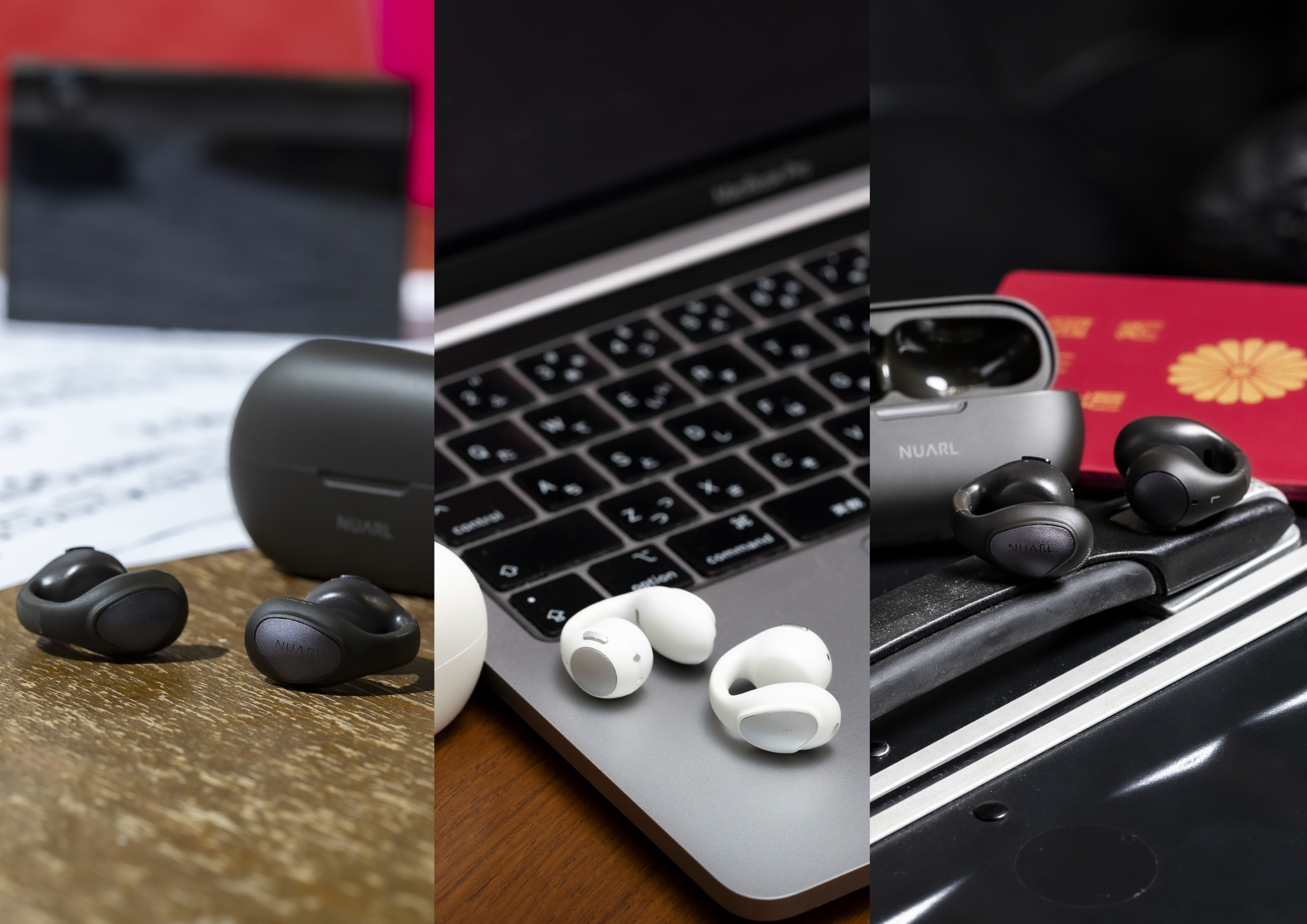
Enjoy high-fidelity audio while effortlessly perceiving ambient sounds, supported by clear call performance for business and AI-assisted conversation features. Designed to deliver safety, comfort, and premium sound quality across diverse scenarios—whether listening to music, commuting, working, or traveling—νClip represents a sophisticated new choice in wireless audio.
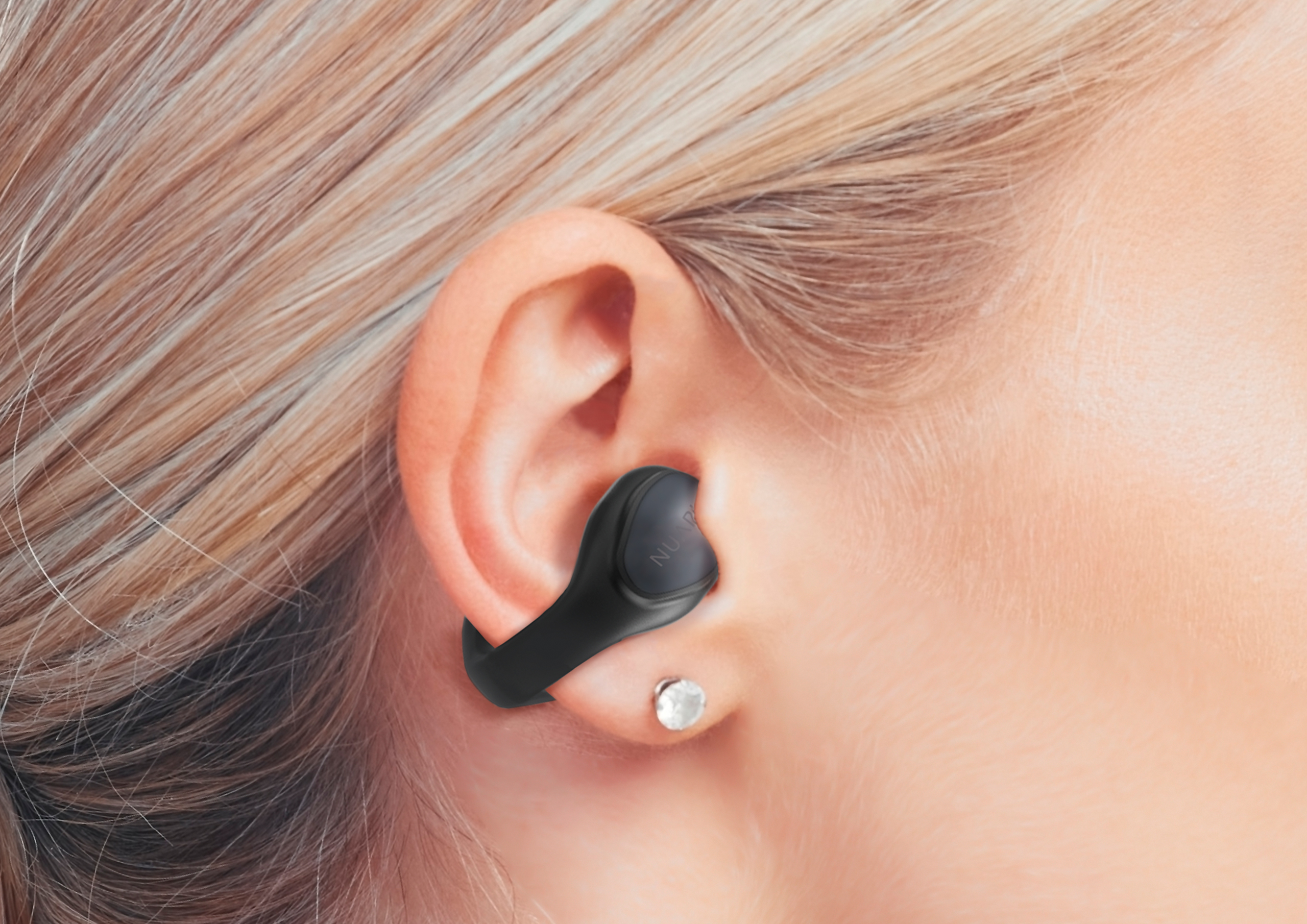
Minimized Sound Leakage and Exceptional Comfort
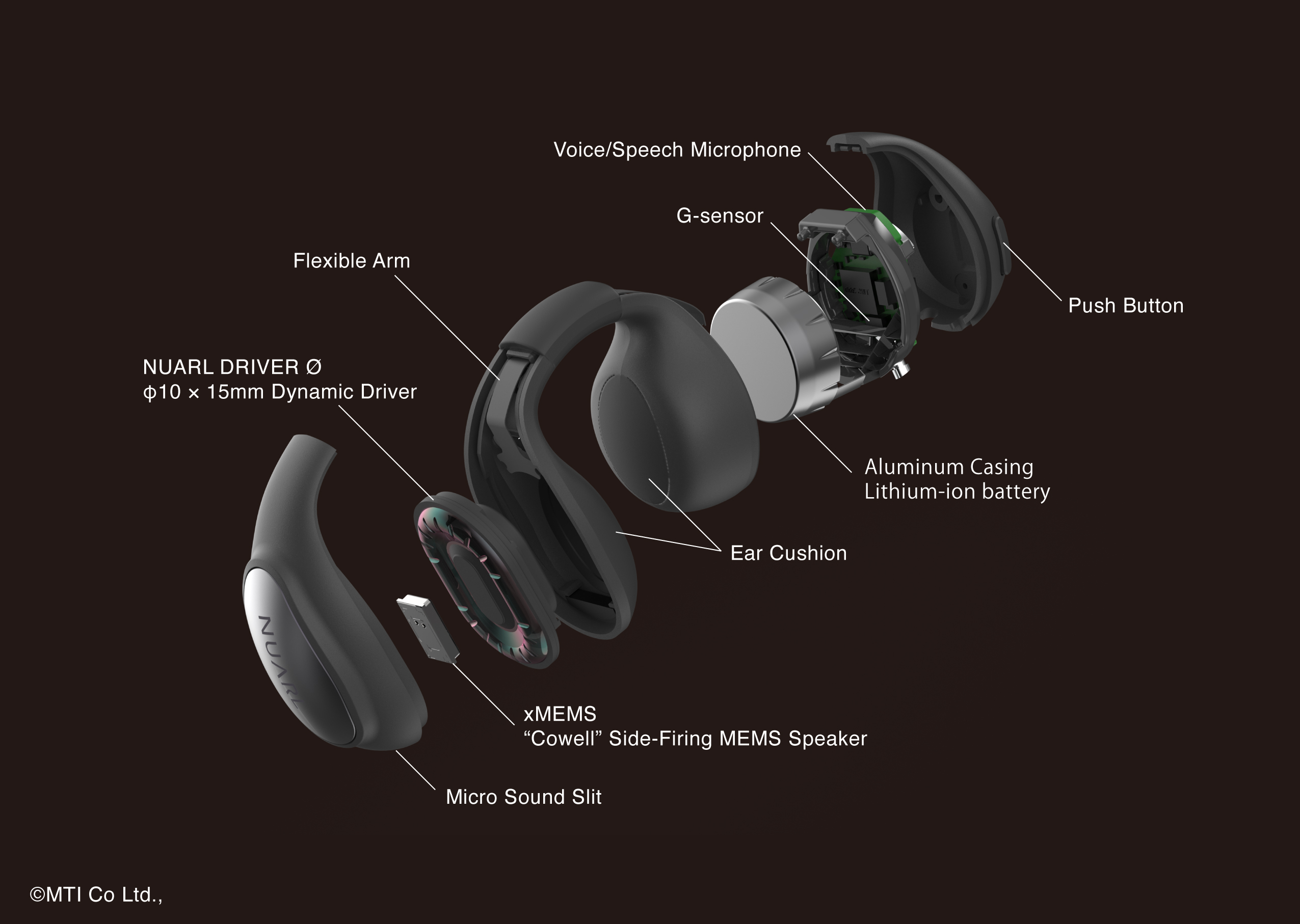
The proprietary Micro Sound Slit effectively suppresses sound leakage. Featuring a dual-layer flexible arm, the earbuds can be effortlessly fitted with one hand, offering a secure, stable fit without uncomfortable pressure. Designed to prevent fatigue during extended wear, they are ideal for everyday use. Soft ear cushions are seamlessly integrated with the housing via dual-molding technology, ensuring exceptional durability, resistance to peeling, and long-lasting, skin-friendly comfort.
Authentic High-Fidelity Audio Performance
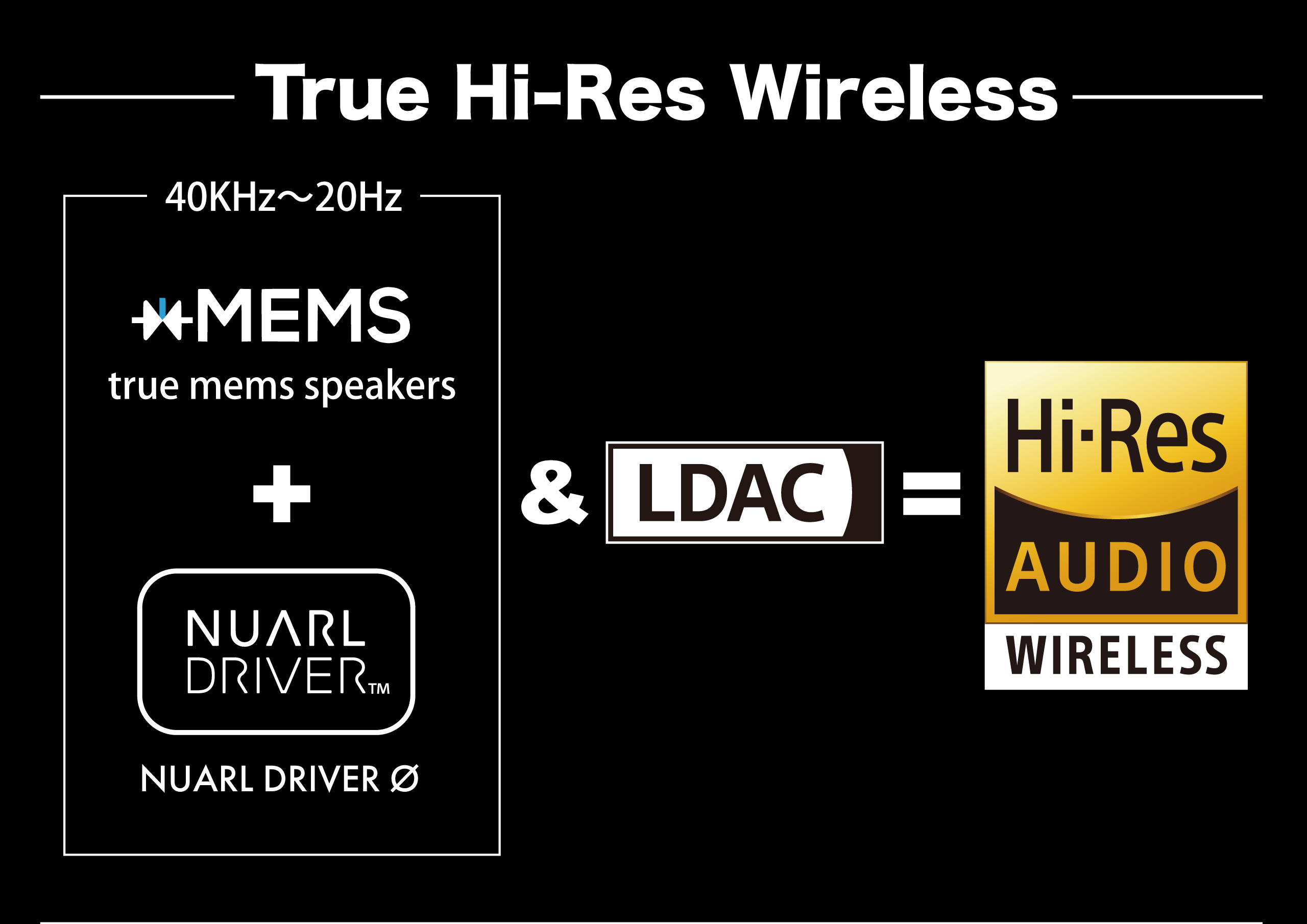
By combining MEMS speakers capable of ultra-high frequency reproduction above 100 kHz with the LDAC codec, νClip delivers genuine Hi-Res Wireless sound despite its open-ear design. From delicate treble nuances to powerful, resonant bass, every detail is reproduced with extraordinary clarity. Whether immersing yourself in music at home or enjoying high-resolution audio on the go, it provides an uncompromised listening experience.
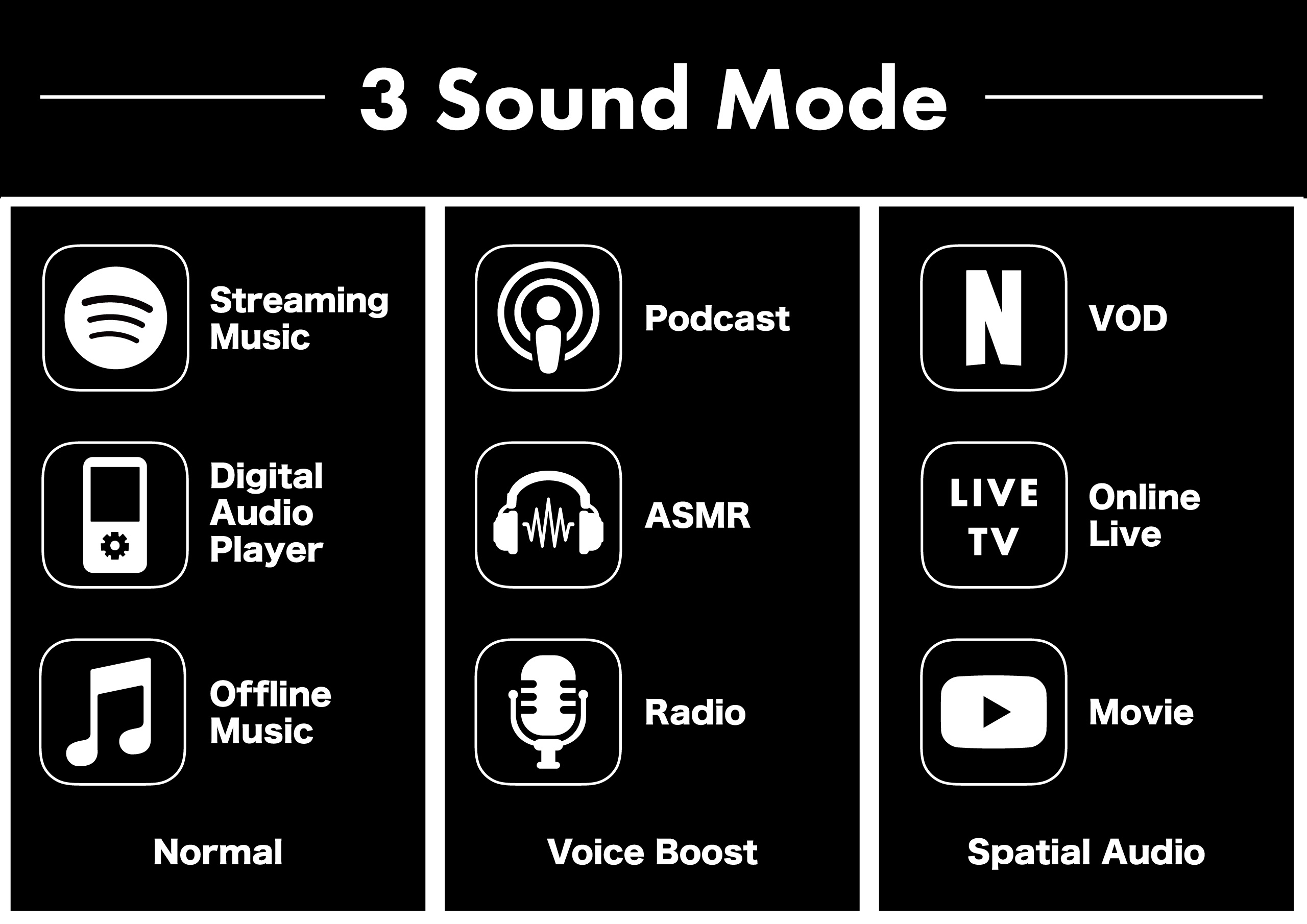
Three Sound Modes Tailored to Your Content
Standard Mode: Delivers a natural, well-balanced sound profile comparable to traditional earphones, faithful to a wide range of musical genres.
Voice Boost: Enhances vocal clarity, making it easier to hear speech in radio broadcasts, podcasts, ASMR, and online meetings.
Spatial Audio: Recreates an immersive, live-like acoustic presence, enhancing movies, games, and live performances.
Easily switch between modes depending on the scene or content to enjoy optimal audio quality at all times.
Smart Support for Conversations and Tasks with AI (AURALINK Edition Only)
The "AURALINK" application records conversations captured by the earbud microphones, providing real-time translation and generating automatic summaries and meeting minutes to empower your communication and workflow. It dramatically boosts productivity and convenience by streamlining business tasks and bridging language barriers during international travel. Purchasers of νClip receive exclusive access to a special plan offering one year of full AURALINK functionality free of charge.
*A smart life application provided by Keian Corporation that enables various AI-assisted features tailored to connected compatible devices.
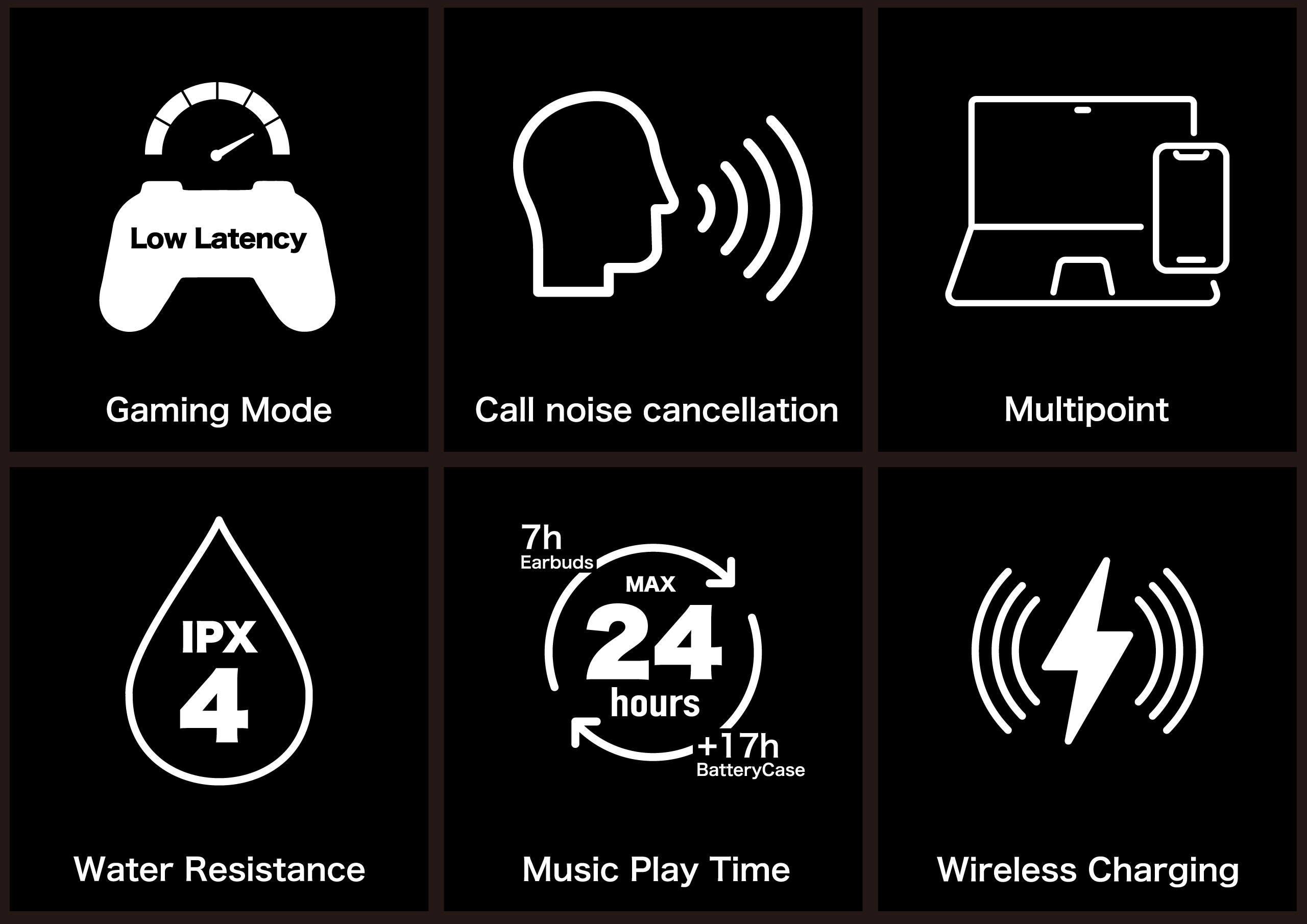
Comprehensive Features Required in Modern Wireless Earbuds
Offers up to approximately 7 hours of continuous playback (totaling 24 hours with the charging case), ensuring all-day use without battery anxiety. It supports both USB-C and wireless charging for maximum convenience. Equipped with multi-pairing for up to 4 devices and multipoint connection for 2 devices simultaneously, as well as a call noise-canceling microphone, low-latency mode, and IPX4-equivalent water resistance, ensuring comfort and performance across diverse everyday environments.
Intuitive and Effortless Control
Equipped with an internal vibration-sensing sensor, allowing you to control playback, pause, and track navigation simply by tapping anywhere on the earbud. This enables seamless operation even through hair or while wearing gloves, without needing direct contact with the earbud itself. For functions requiring precise input, such as volume adjustment and mode switching, tactile push buttons are also provided, ensuring reliable operation and preventing accidental inputs.
Customizable to Your Preference
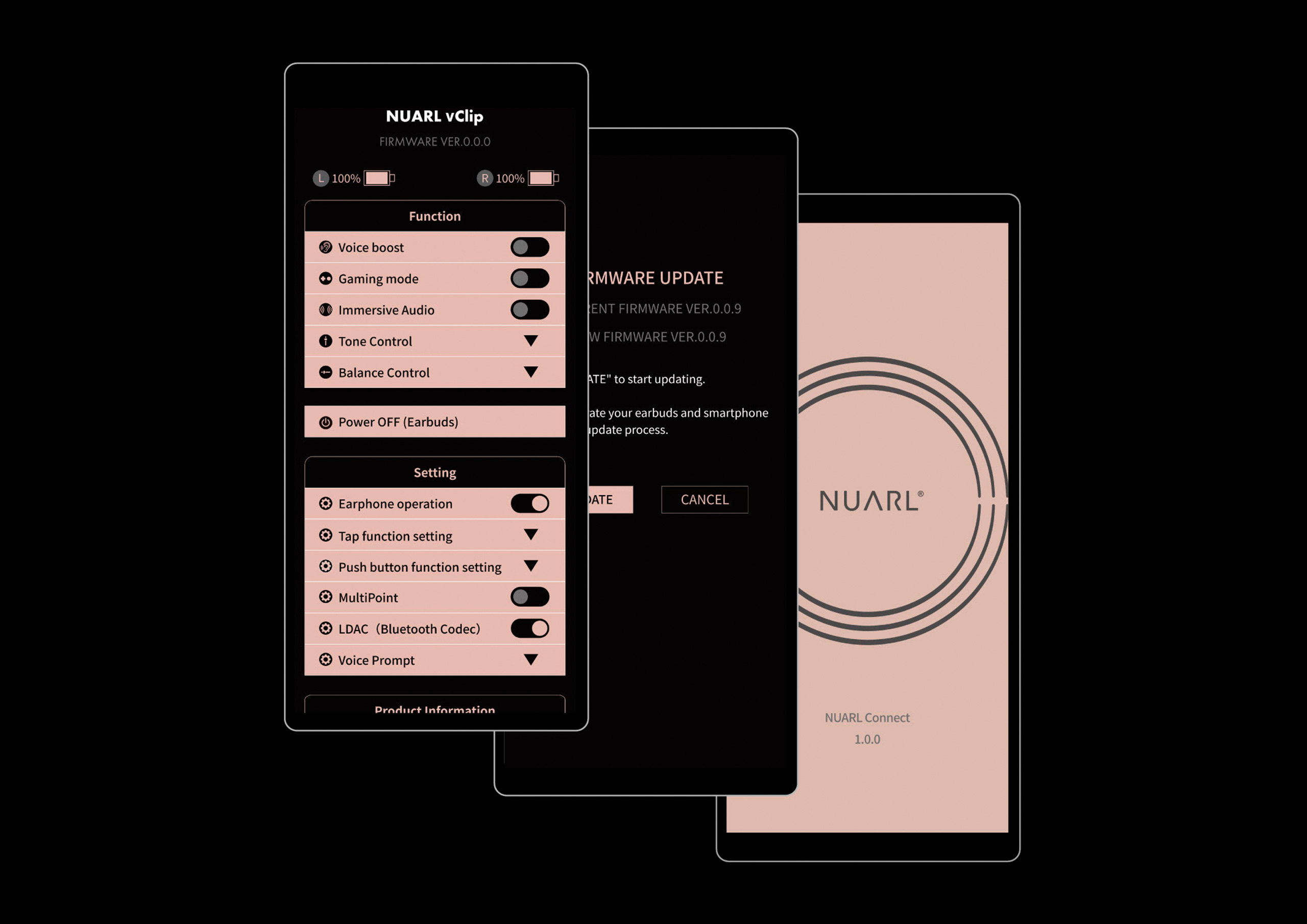
By using the dedicated "NUARL Connect" app (compatible with iOS/Android), you can keep νClip updated with the latest firmware and customize settings for an optimized user experience.


*Available as a free download on the App Store and Google Play Store.
νClip Standard EditionOpen Wireless Earbuds
| Model No. / Color | NVCSE-NB / Natural Black NVCSE-NW / Neutral White |
|---|---|
| Accessories | Charging Case USB Type-C Charging Cable Quick Guide (Japanese, English, Chinese) |
| User Manual | User Manual (PDF) *Not included in the package. |
| Specifications |
|


νClip (AURALINK Edition)Open Wireless Earbuds
| Model No. / Color | NVCE01-NB / Natural Black NVCE01-NW / Neutral White |
|---|---|
| Accessories | Charging Case USB Type-C Charging Cable Quick Guide (Japanese, English, Chinese) |
| User Manual | User Manual (PDF) *Not included in the package. |
| Specifications |
|
Frequently Asked Questions (Updated: July 1, 2026)
What is the difference between the "Standard Edition" and the "AURALINK Edition"?
The sole difference is whether the dedicated AI app "AURALINK" is supported. The hardware specifications are completely identical.
Unable to download or install the NUARL Connect app from the Google Play Store
Due to changes in Google's privacy policy, users who have not completed real-name verification in the Google Play Store may experience restrictions when downloading or installing the app. In such cases, please complete real-name verification in your Google Play Store account settings before proceeding. Alternatively, direct downloads are available from this page.
Latest App and Firmware Versions (as of July 1, 2026)
NUARL Connect for Android: v3.2.2 / for iOS: v3.2.2 / νClip Firmware: v1.1.2
Changes in νClip Firmware Version v1.1.2:
・Improved connectivity with the iPhone 17 series
・Fixed an issue where multipoint connection settings were reset
・Adjusted call microphone audio quality
・Increased voice guidance volume
・Added Volume Boost Mode
・Changed Gaming Mode ON/OFF operation to 4 button clicks
* Enabling "Volume Boost" increases the volume by up to +3 dB compared to standard mode. However, please note that bass volume may be reduced and sound distortion may occur depending on the track. Once enabled, the "Volume Boost" setting is retained even after powering off; however, if you switch to another mode such as "Voice Boost" or "Spatial Audio," it must be enabled again. Additionally, with the introduction of "Volume Boost" mode, switching "Gaming Mode" ON/OFF can now only be operated directly via the earbuds (switching via the NUARL Connect app is not supported). Please note that audio interruptions may occur more frequently in Gaming Mode depending on surrounding radio frequency conditions. Gaming Mode setting is not stored in the earbuds and will automatically turn OFF when powered off.
Precautions when using LDAC (1)
LDAC is enabled by default. Toggling "LDAC" OFF ⇔ ON will restart the earbuds. The app will generally reconnect automatically after a brief pause; if it fails to reconnect, please restart NUARL Connect. Note that LDAC High-Quality Mode (fixed at 990 kbps) consumes substantial wireless bandwidth and requires a stable signal environment. It is not recommended for use while commuting, in crowded areas, or outdoors where radio interference is likely. If audio stutters, please switch the Bluetooth settings on your host device to Best Effort mode. Additionally, please be aware that continuous playback time is significantly reduced when using LDAC due to higher power consumption.
Precautions when using LDAC (2)
LDAC does not function during multipoint connections. To use LDAC, please set Multipoint Connection to OFF in the NUARL Connect app settings. Note that LDAC is enabled by default.
Precautions when using Multipoint Connection (1)
Multipoint is disabled by default. Please enable it using the NUARL Connect app before use. Toggling "Multipoint" ON ⇔ OFF will restart the earbuds. The app will usually reconnect automatically; if reconnection fails, please restart the app. When connecting to two paired devices via multipoint, the earbuds automatically reconnect to the last connected device, but may not connect automatically to the second device. If automatic connection fails for the second device, manually select νClip in your device's Bluetooth settings menu to establish the connection.
Precautions when using Multipoint Connection (2)
If an Android device and an iOS device are connected via multipoint simultaneously, launching the NUARL Connect app on both devices at the same time may cause operational conflicts. Please run the NUARL Connect app on only one device at a time. (Interference may occur even if the app is running in the background, so please force close the app on the unused device.)
Precautions when using Multipoint Connection (3)
During multipoint connection, effective signal strength may decrease. As a result, connection stability may degrade and audio dropouts may occur in environments subject to radio interference, such as near intersections, train stations, or inside trains, or due to ambient signal fluctuations. When using the earbuds in such locations, please disconnect the unused device and use a single connection.
Precautions when using Multipoint Connection (4)
Multipoint connection does not operate while connected via LDAC. To use multipoint connection, please turn OFF the LDAC codec in the NUARL Connect app settings. Note that multipoint is disabled by default.
Why does NUARL Connect request permission to use Bluetooth upon launch?
NUARL Connect utilizes Bluetooth Low Energy (BLE) to communicate with νClip. Due to operating system restrictions, granting Bluetooth permission is mandatory for app functionality.
Why does NUARL Connect request location permissions?
Due to smartphone operating system specifications, applications utilizing Bluetooth require permission to access location data. Please note that this is an OS-level requirement; NUARL Connect itself neither acquires nor utilizes your location information.
Volume is too low
When using certain Android devices, the OS volume controls may not synchronize with the earbud volume controls. In such cases, if the OS volume is set low, the audio output will remain low even if the earbud volume is raised to maximum. On Android devices, please enable "Absolute Volume" in settings. Note that "Absolute Volume" may be listed differently depending on the manufacturer (e.g., "Volume Sync"). Furthermore, some models may not apply Absolute Volume settings correctly depending on the operating environment. For further details, please contact your smartphone manufacturer.
Volume is lower in one earbud
Please perform a hardware reset on the earbuds to restore factory settings.
Tone Control (Equalizer) cannot be used
Tone Control is unavailable during "Voice Boost," "Volume Boost," or "Spatial Audio" modes, as audio characteristics are automatically optimized in these modes.
Earbuds fail to charge when placed in the case
If the earbuds are not properly aligned with the charging terminals inside the case, charging will not initiate even when the case lid is closed.
Earbuds do not power off when placed in the case / Do not connect when removed from the case
The automatic power ON/OFF feature will not function if the charging case battery is completely depleted. Please recharge the charging case.
Playback control via earbud controls is not responding
Certain portable digital audio players (such as Walkman models) may not support remote playback control commands depending on the device. Additionally, playback control operates via internal vibration-sensing sensors; please try tapping a different location on the earbud surface.
Cannot pair with device
Please delete past, unused device pairing records (device names) from your device's Bluetooth settings menu, then attempt pairing again. If the device name does not appear, toggle Bluetooth OFF and ON on your device. When pairing with two or more devices, temporarily turn OFF Bluetooth on currently connected devices before initiating pairing with a new device. For details on pairing additional devices or re-pairing during multipoint connection, please refer to the User Manual.
NUARL Connect app fails to launch on Android-based digital audio players
NUARL Connect requires GPS capability and Android 12 or later. During multipoint connection, you may operate NUARL Connect from a simultaneously connected smartphone instead.
NUARL Connect app fails to launch
If the app fails to launch while connected to the earbuds, try toggling Bluetooth OFF/ON on your host device, verifying the connection status, and restarting the app. Note that on Android OS, NUARL Connect cannot function unless location permissions are granted. If the issue persists, restart your host device to clear system cache. Additionally, changing the Bluetooth device name of the connected earbuds will cause NUARL Connect to stop functioning properly; please refrain from renaming the device.
About Firmware Updates
This unit supports firmware updates to introduce new features and performance enhancements. When using NUARL Connect, the "Firmware Update" menu will highlight in red upon app launch whenever a new firmware version becomes available.
Firmware update fails (1)
Low battery levels may cause firmware updates to fail. Please fully charge the earbuds before proceeding with a firmware update.
Firmware update fails (2)
Do not lock your device screen or switch to other applications while a firmware update is in progress. Should an update fail, return the earbuds to the charging case to reboot them, then restart the update process from the beginning.
Firmware update fails (3)
Firmware updates cannot be performed during active multipoint connections.
Audio occasionally cuts out
Wireless earbuds are susceptible to ambient radio frequency interference. Outdoors, communications may drop in locations with high density of surveillance cameras (such as station premises or parking facilities), near traffic signal control systems, in busy train stations, areas with numerous Wi-Fi access points, or crowded spaces. Indoors, interference may arise from microwave ovens or active Bluetooth devices. If the connection between left and right earbuds drops, turning your head slightly may bypass interference and restore connectivity.
Certain smartphone models feature lower Bluetooth transmission power. If frequent audio dropouts persist, consider changing the source device codec to SBC or reducing the distance between the playback device and the primary earbud.
If dropouts occur frequently outside these conditions, a hardware malfunction may be present. Please contact NUARL Support (Inquiries received on weekends, holidays, or company closures will be addressed on the following business day).
Connection becomes unstable when connected to a computer
The native Bluetooth stacks in computer operating systems are often not fully optimized for audio playback, which may prevent audio codecs from negotiating properly and result in stuttering or distortion. Additionally, simultaneous use of other Bluetooth peripherals (e.g., mice, keyboards) can cause mutual radio interference. On MacBook models, resetting the NVRAM (PRAM) or forcing AAC codec usage for Bluetooth audio transmission may alleviate these issues, though resolution is not guaranteed. (Please note that we do not offer customer support for operating system configurations.)
Continuous playback time seems shorter than expected
Continuous playback duration varies depending on the radio frequency environment, audio content, playback volume, and active feature usage. Playback time is noticeably shorter when streaming via the LDAC codec compared to standard codecs.
No longer connects to the playback device
Please remove the earbud profile from your playback device's Bluetooth menu and perform pairing again.
Left and right earbuds do not connect to each other
Return both earbuds to the charging case, remove them, and power them on again. If connectivity is not restored, please refer to the User Manual to perform a factory reset.
How to reset (factory restore) the earbuds
With both earbuds seated in the charging case, press and hold the button on the back of the case for approximately 10 seconds. The orange LED indicator will flash three times to signal that factory initialization is complete.
One earbud is lost
You can utilize our paid "NUARL Care" replacement program. If you require assistance, please contact NUARL Support.
Purchasing individual accessories such as a replacement charging case
Replacement accessories are available for purchase directly on the Official NUARL Online Store.
Cannot locate the User Manual
A full User Manual is not included in the product packaging (only a Quick Guide is supplied). Please download the νClip User Manual (PDF) here.